📖 ATBClone User Guide & Manual (English)
English Version | 簡體中文 | 繁體中文 | 日本語 | 한국어 | Deutsch | Français | Español | Русский
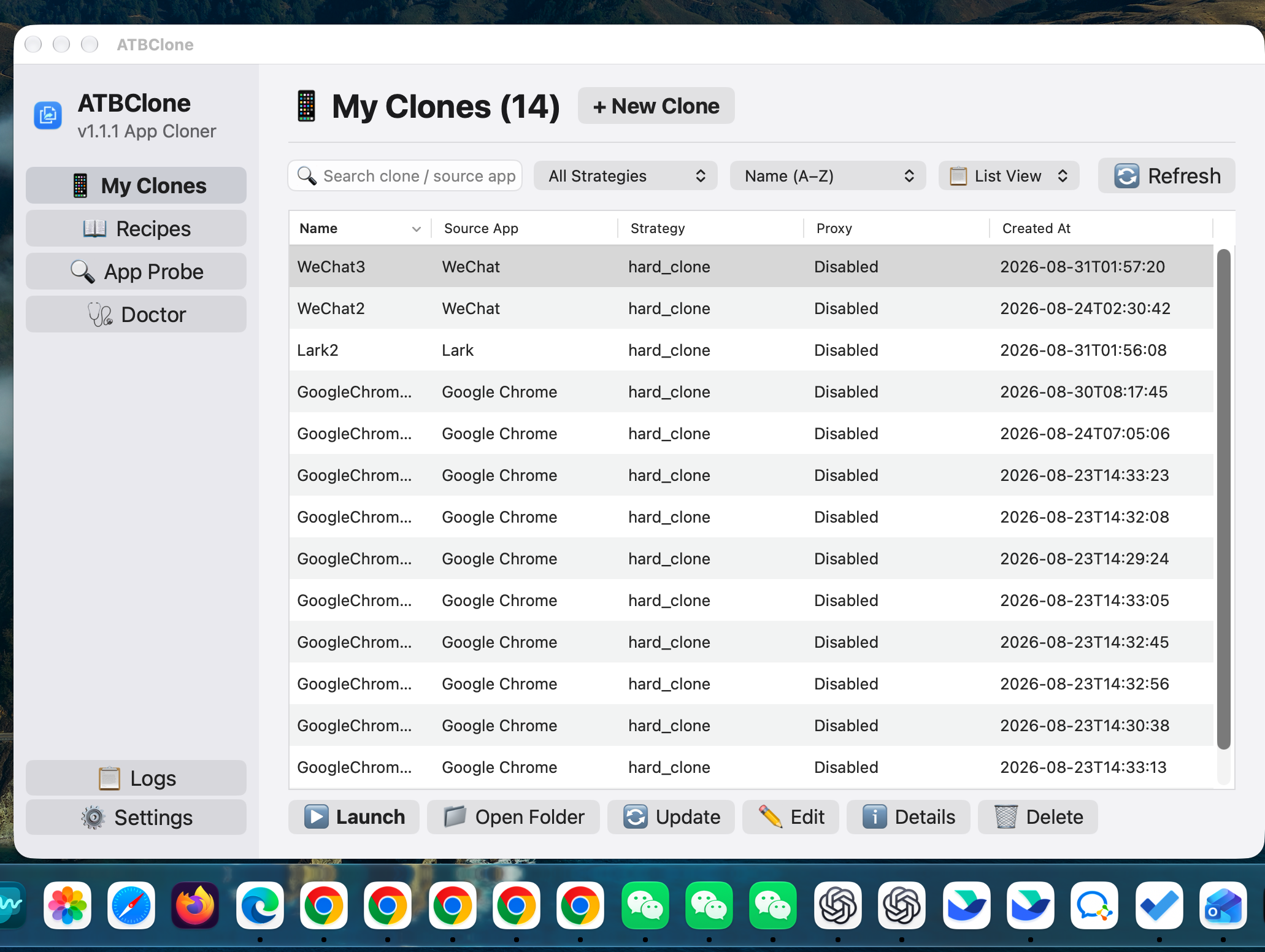
Welcome to the official ATBClone User Manual. This guide provides step-by-step instructions, practical workflows, architectural deep-dives, and troubleshooting tips to help you master application multi-instancing and sandbox isolation on macOS.
🧭 Navigation Roadmap
Whether you are a beginner looking to run two instances of WeChat or Telegram, or a power user configuring custom proxy routes and Mach-O sandbox stripping, choose your path below:
| Chapter | Title | Primary Audience | Key Topics Covered |
|---|---|---|---|
| Chapter 1 | Basic Operations & Clone Management | 👶 Beginners / Everyday Users | 7-step creation wizard, launching apps, opening data folders, updating clones after host upgrades, batch updates, and safe deletion. |
| Chapter 2 | Custom Recipes for Niche Apps | ⚡ Intermediate Users | Using App Prober to scan unlisted apps, visual Recipe Editor, and basic parameters reference (bundle_id, strategy, strip_sandbox, proxy). |
| Chapter 3 | Under the Hood & Advanced Parameters | 🔬 Power Users / Geeks | Soft vs. Hard clone mechanics, Sandbox stripping, Binary Wrapper Hijack, data-logic separation, and advanced YAML macros (environment_injection, symlink_whitelist). |
| Chapter 4 | FAQ & Diagnostic Troubleshooting | 🩺 All Users | High-frequency questions (data safety, account ban risks, storage paths), Doctor system diagnostics, and GitHub Issue reporting via Clone Details. |
🌟 Why ATBClone?
Traditional application cloning methods on macOS (such as simply copying an .app bundle via cp -R or using basic terminal aliases) frequently break because modern macOS apps share user preferences, databases, and Keychain items.
ATBClone solves this by delivering Quadruple Isolation:
graph TD
    A[ATBClone Isolation Engine] --> B[1. Data & Cache Isolation]
    A --> C[2. Visual & Dock Identity]
    A --> D[3. System TCC Permissions]
    A --> E[4. Network Proxy Isolation]

    B --> B1["Independent $HOME & $TMPDIR, no database locking"]
    C --> C1["Independent Dock icons, Finder titles, and Spotlight entries"]
    D --> D1["Separate microphone, camera, and disk access grants"]
E --> E1["Per-clone HTTP/SOCKS5 proxy routing (anti-fingerprinting)"]- 📦 Data & Cache Isolation: Each clone operates in its own isolated user home (
$HOME) or custom--user-data-dir. Multiple accounts can log in simultaneously without locking local SQLite databases or overwriting caches. - 🎨 Visual & Interactive Isolation: Clones feature unique names, customizable app icons, and distinct entries in Spotlight, Launchpad, and the macOS Dock.
- 🛡️ System Permissions (TCC) Isolation: Because hard clones possess distinct
CFBundleIdentifiervalues, macOS treats them as distinct applications. Camera, microphone, accessibility, and local network permissions are managed independently. - 🌐 Network Traffic Isolation: You can route a specific clone through an independent HTTP or SOCKS5 proxy without affecting host system traffic or your primary application instance.
📚 Core Concepts & Glossary
Before getting started, here are key concepts used throughout this manual:
- Primary Application (Host App): The original
.appbundle installed on your Mac (usually located in/Applications). - Clone Application: The secondary instance generated by ATBClone (by default saved to
~/ATBClone/Apps). - Hard Clone (Physical Duplicate & Wrapper Hijack): Duplicates the application bundle, mutates its bundle identifier, injects environment wrappers, and re-signs the binary. Best for social and native apps (WeChat, Telegram, QQ, Lark, Discord).
- Soft Clone (Launcher Wrapper): Creates a lightweight launcher shell that passes isolated command-line arguments (
--user-data-diror--profile) without copying hundreds of megabytes. Best for browsers and code editors (Cursor, VS Code, Firefox, Brave, Zed). - Recipe: A structured YAML configuration describing how ATBClone should clone, isolate, and launch a specific application.
- Isolated Data Directory: The folder on disk where a clone stores its chats, configurations, downloads, and cache files (by default located in
~/ATBClone/Data/<CloneName>).
🚀 Quick Start Guide
- Download & Install: Grab
ATBClone-arm-0.9.7.dmgfrom GitHub Releases. Open the DMG and dragATBClone.appinto/Applications. - Launch ATBClone: Open ATBClone from Launchpad or
/Applications. - Start the Wizard: Click the "+ New Clone" button on the top right of the dashboard.
- Follow the 7 Steps: Pick your app, customize the name, and click "Clone Now".
- Run Your Clone: Click "Launch" or open it directly from Spotlight or your Dock!
Note
Language Versions: This documentation is also being translated into 简体中文, 繁體中文, 日本語, and other languages. Please check the docs/guide/ directory for updates.